

Connect your Google Workspace to Fisar
A step-by-step guide for school, trust and business IT administrators to create the Google credentials Fisar needs to connect to your Google Workspace.
Connect your Google Workspace to Fisar
To connect your Google Workspace to Fisar, you'll create five Google credentials in your own Google account and then share them with us securely. The setup usually takes about 30 minutes.
You stay in control throughout. The credentials are created in your Google account, and you can remove Fisar's access at any time.
Before you start
You'll need:
- A Google Workspace super admin account, or a colleague who has one, for the final stage.
- Access to the Google Cloud console.
- A safe place to keep the values as you collect them, such as your organisation's password manager.
You use the same Google Workspace account for the Google Cloud console and the Google Admin console, so one sign-in covers both. If you are not a super admin, you can complete Stages 1 to 5 yourself, then pass the Unique ID from Stage 5 to a super admin for Stage 6.
How it works
The setup has six stages. Stages 1 to 5 happen in the Google Cloud console. Stage 6 happens in the Google Admin console.
1. Set up project → 2. Create OAuth client → 3. Turn on APIs → 4. Create service account and key → 5. Copy Unique ID → 6. Authorise Fisar
What you'll collect
| Value | What it looks like |
|---|---|
| OAuth Client ID | Letters and numbers, ending in .apps.googleusercontent.com |
| Client Secret | A shorter mix of letters and numbers |
| Service Account Email | An email ending in .iam.gserviceaccount.com |
| Private Key | A long block of text starting -----BEGIN PRIVATE KEY----- |
| Unique ID | Numbers only, around 21 digits |
What Fisar can access
Fisar asks for read-only access to your users, Gmail, Google Drive, Google Calendar and Google Chat. Fisar cannot change, send or delete anything in your Google Workspace.
Stage 1: Set up your Google project
A project is a container in Google Cloud that holds all of Fisar's settings in one place. In this stage, you also tell Google the app's name and who to contact about it.
Open Google Auth Platform
Sign in to the Google Cloud console and search for Google Auth Platform in the top search bar.
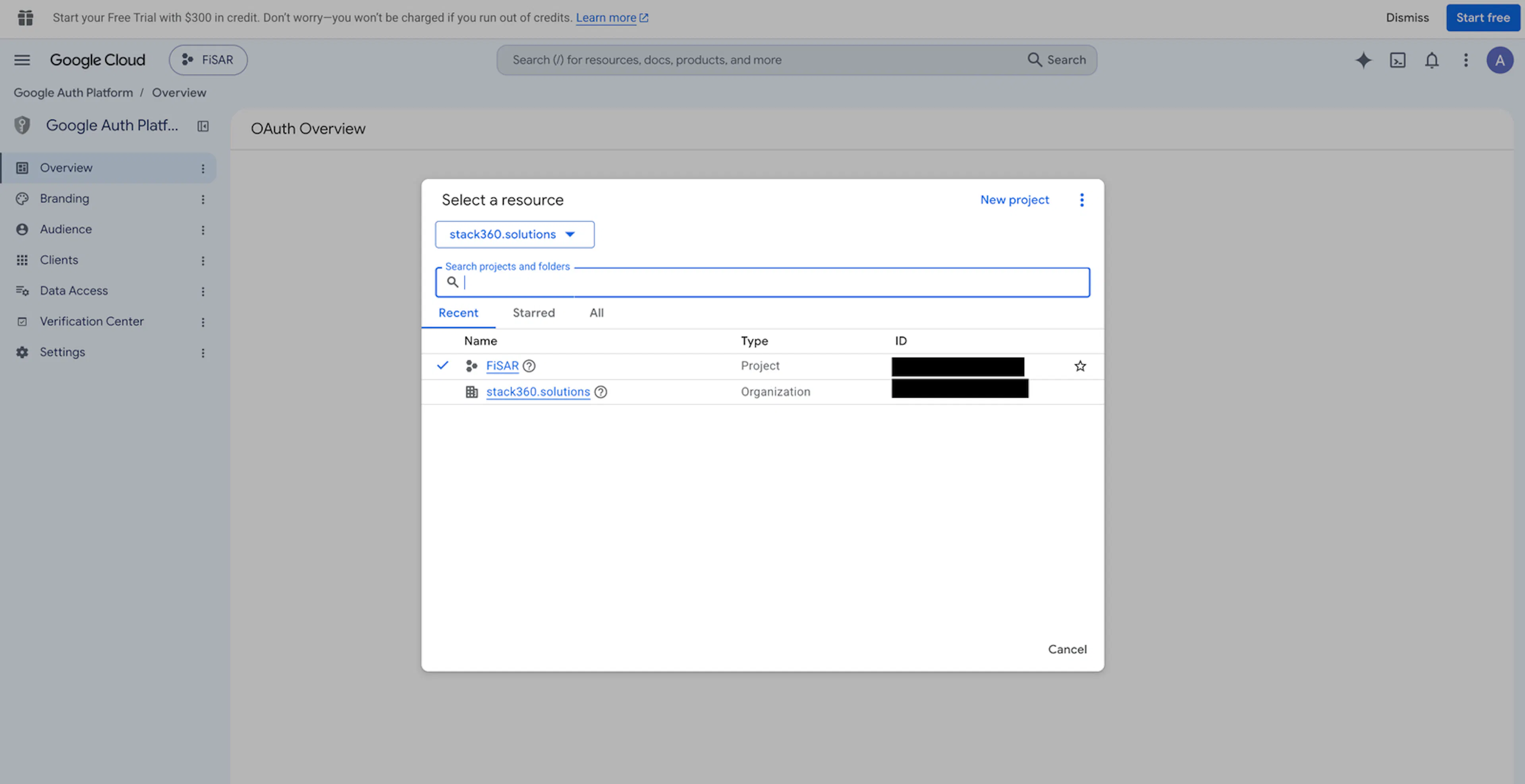
Choose or create a project
Click the project picker at the top of the page and choose your project. If you don't have one, click New project and give it a recognisable name, such as Fisar.
Start the configuration
Click Get started.
Enter your app information
Enter an app name (for example, Fisar) and choose your support email address. Click Next.
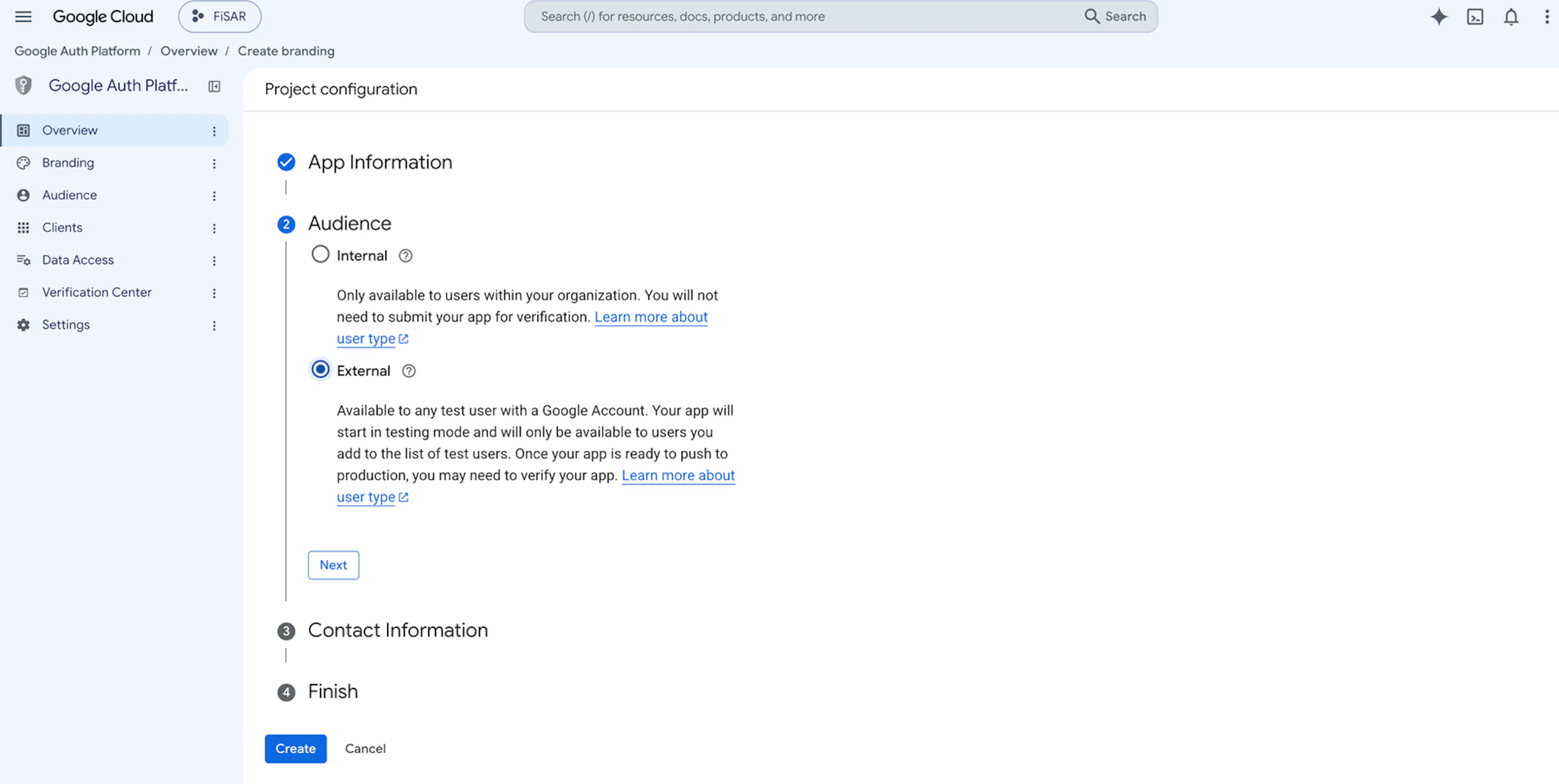
Choose the audience
Select External, then click Next.
This is Google's setting for how the app is registered. It does not give anyone outside your organisation access to your data. Access is only granted in Stage 6.
Add contact information
Enter an email address where Google can send you notices about this project. Click Next.
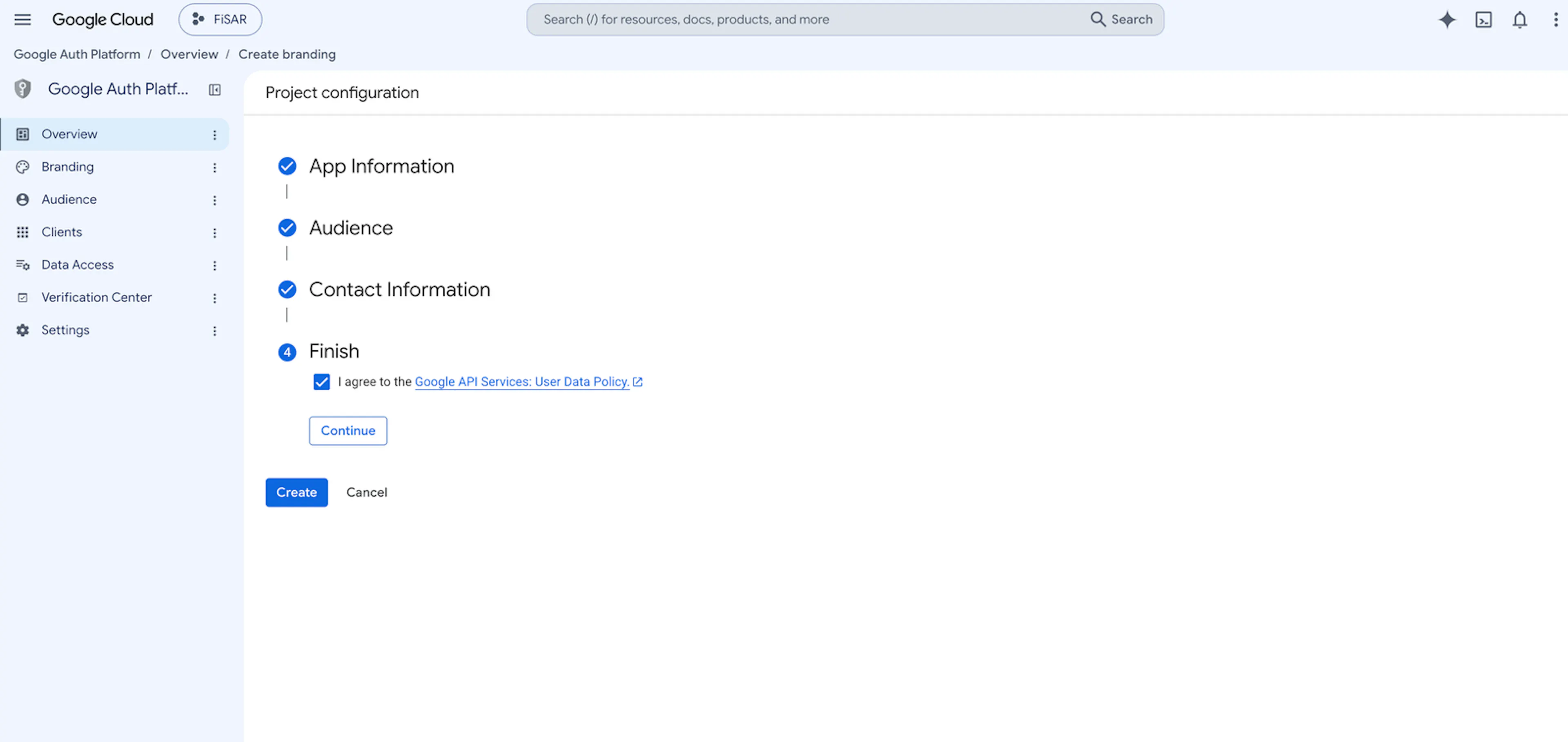
Finish
Tick the box to agree to the Google API Services User Data Policy, click Continue, then click Create. All four steps will now show a tick.
Stage 2: Create the OAuth client
An OAuth client is how Fisar identifies itself to Google, a bit like a username and password for the app. This stage gives you the OAuth Client ID and Client Secret.
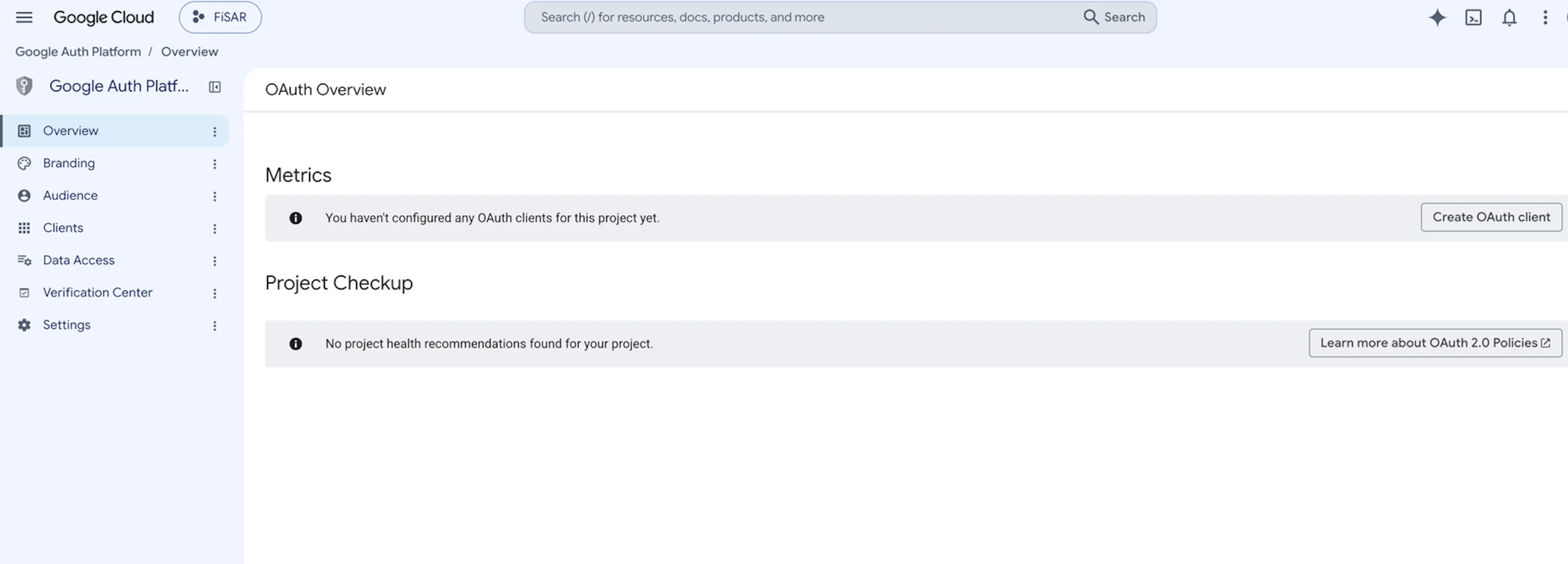
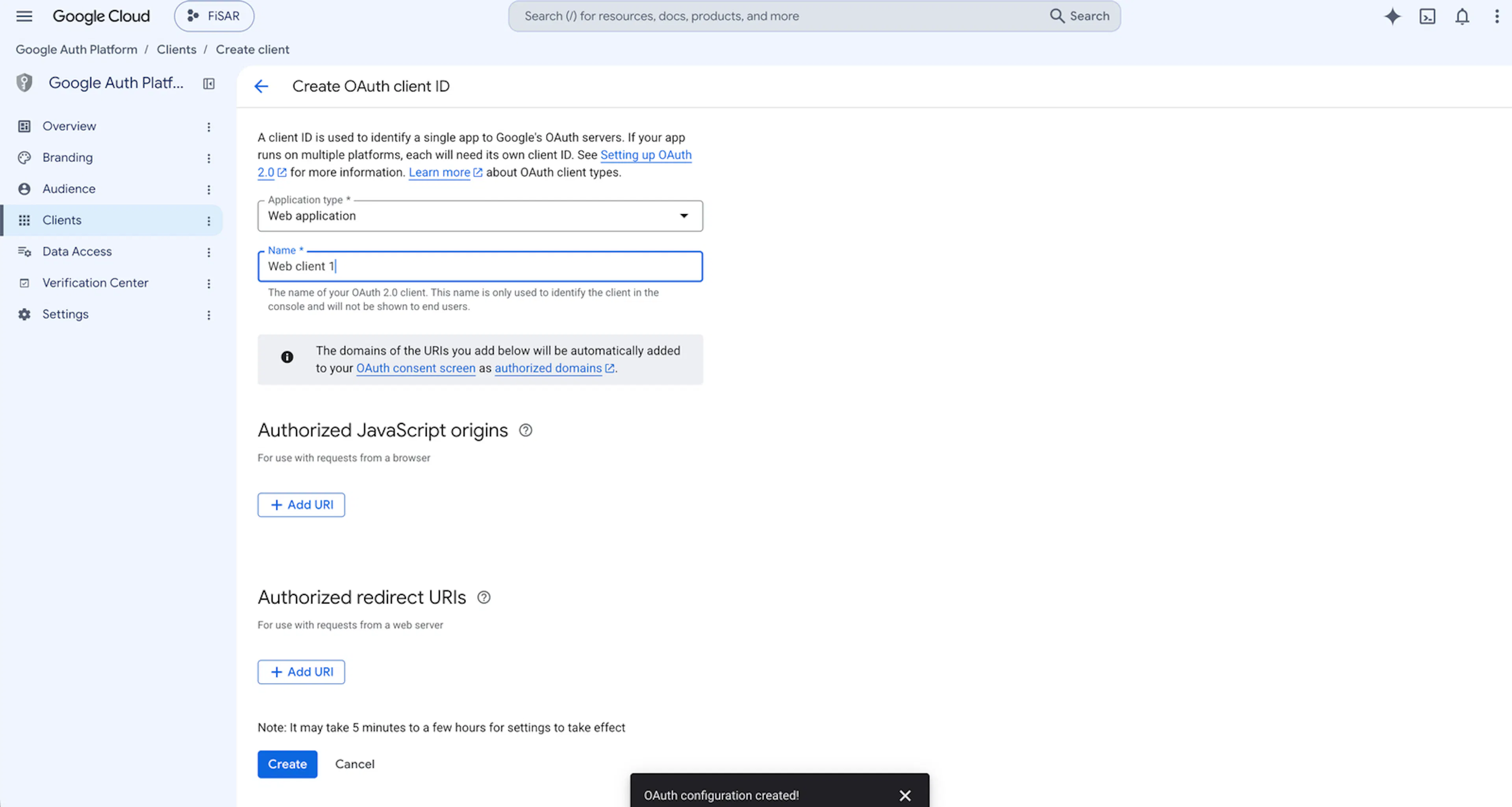
Create the client
On the OAuth Overview page, click Create OAuth client. You can also get there from the Clients tab, then Create client.
Choose the application type
Under Application type, choose Web application.
Name the client
Enter a name, such as Fisar web client. Leave the other fields as they are and click Create.
Save the Client ID and Client Secret
Copy both values into your password manager, or click Download JSON to save them as a file.
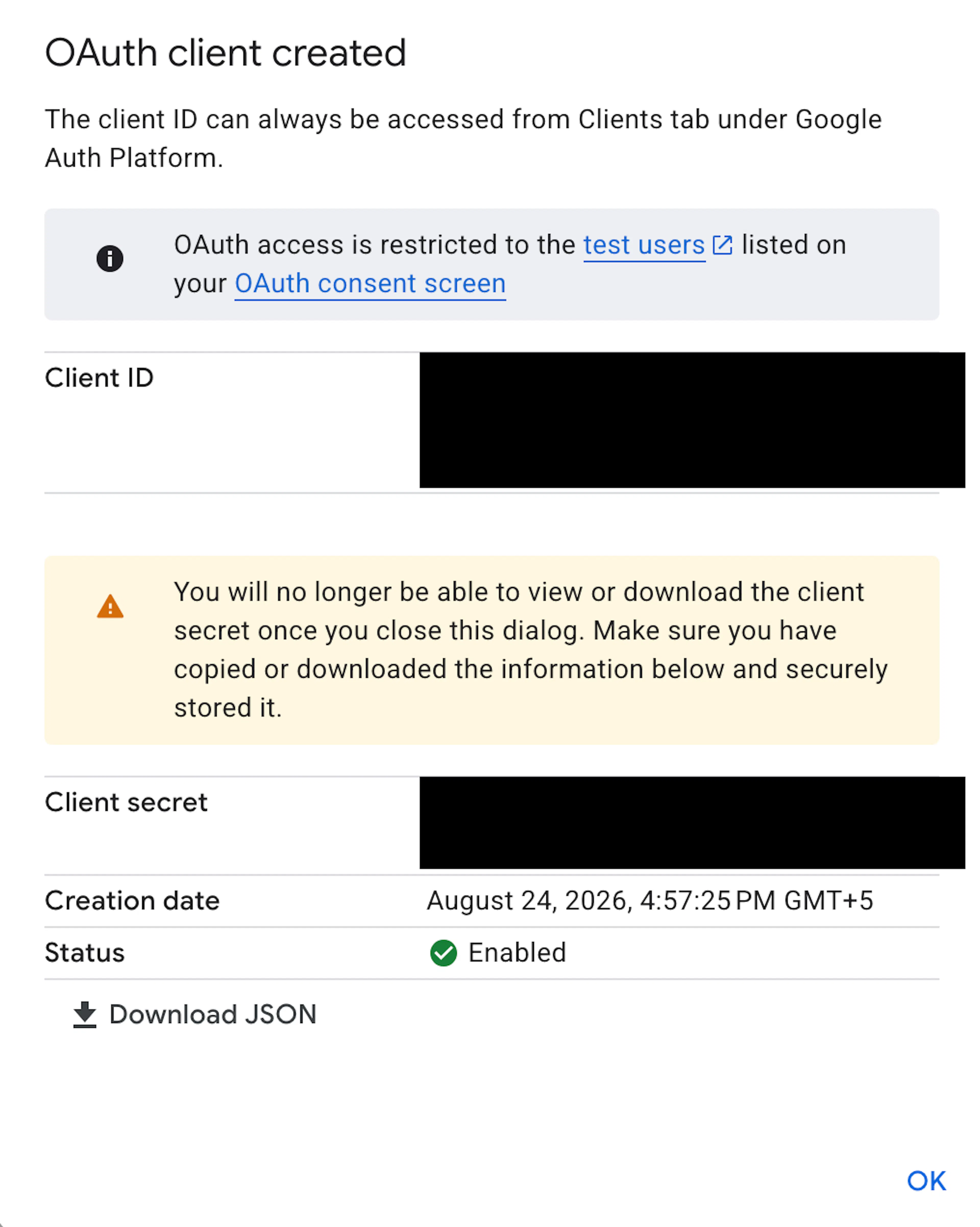
Google shows the Client Secret only once. Please copy it before you click OK. If it's lost, you can create a new OAuth client and use the new values instead.
Stage 3: Turn on the Google APIs
An API is a connection point that lets Fisar read a particular Google service, such as Gmail or Drive. Fisar needs five of them switched on in your project. Check the same project is still selected at the top of the page.
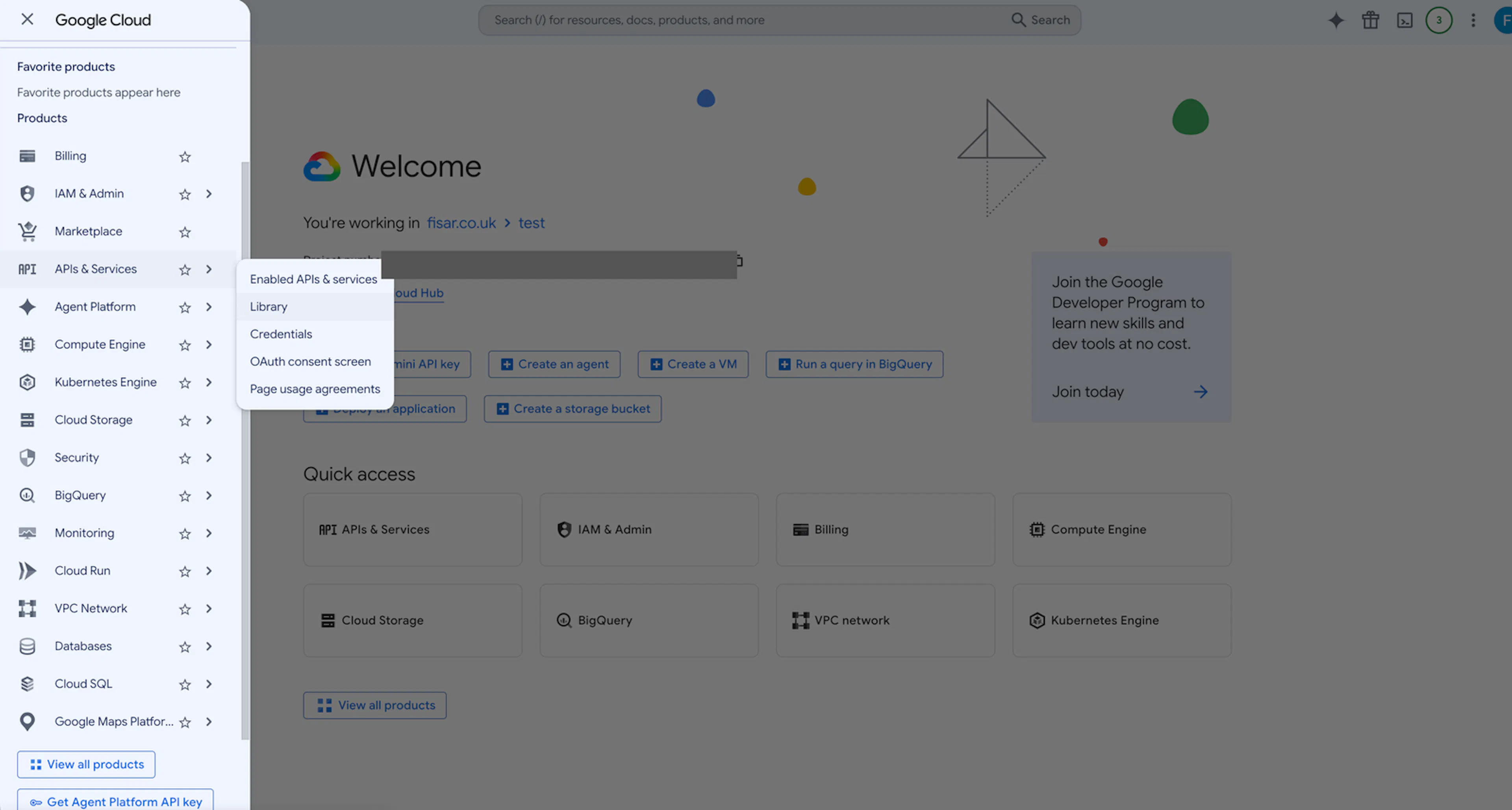
Open the API Library
Click the menu (three lines, top left), then go to APIs & Services → Library.
Enable each API
Search for each API below, open it and click Enable:
- Admin SDK API
- Gmail API
- Google Drive API
- Google Chat API
- Google Calendar API
If an API shows Manage instead of Enable, it's already on.
Stage 4: Create the service account and key
A service account is a special account that Fisar uses to read data on your organisation's behalf, rather than signing in as a real person. This stage gives you its Service Account Email and Private Key, both inside one downloaded file.
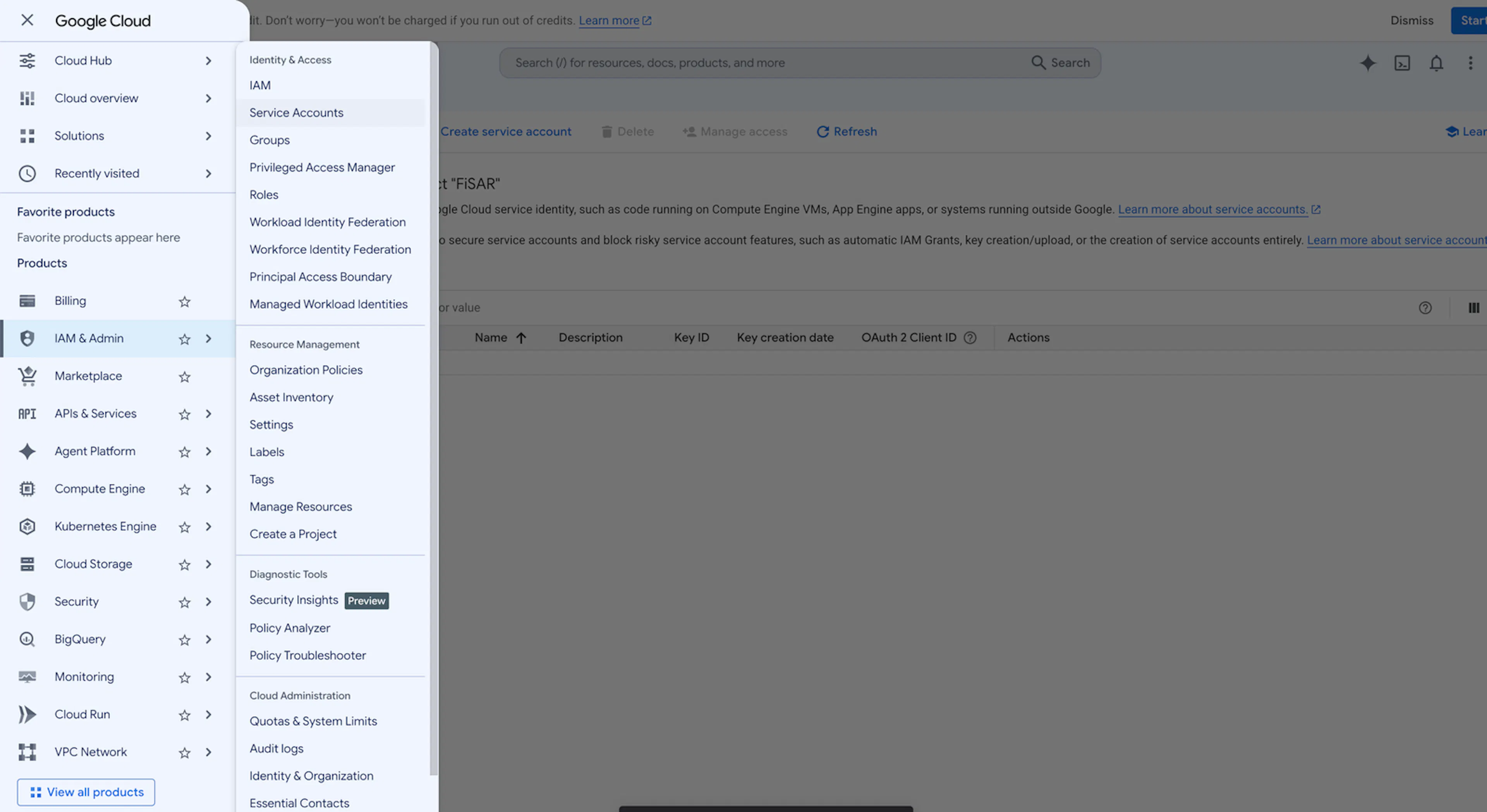
Open Service Accounts
Click the menu (three lines, top left), then go to IAM & Admin → Service Accounts.
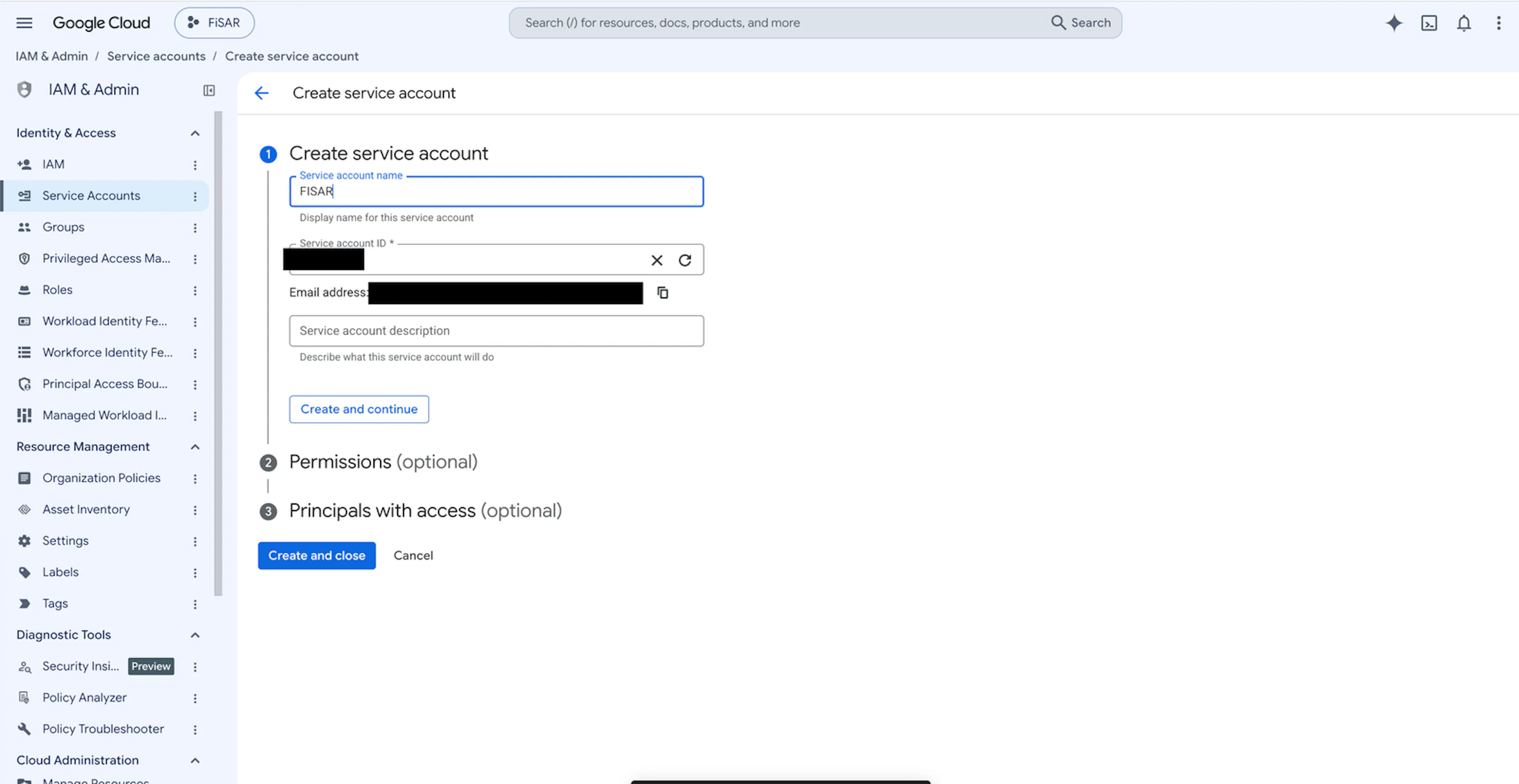
Create the service account
Click Create service account and enter a name, such as Fisar. Google fills in the account ID for you. Click Create and continue, then Create and close. The permission steps are optional and can be skipped.
Open the new account
On the Service Accounts list, click the email address of the account you've just created.
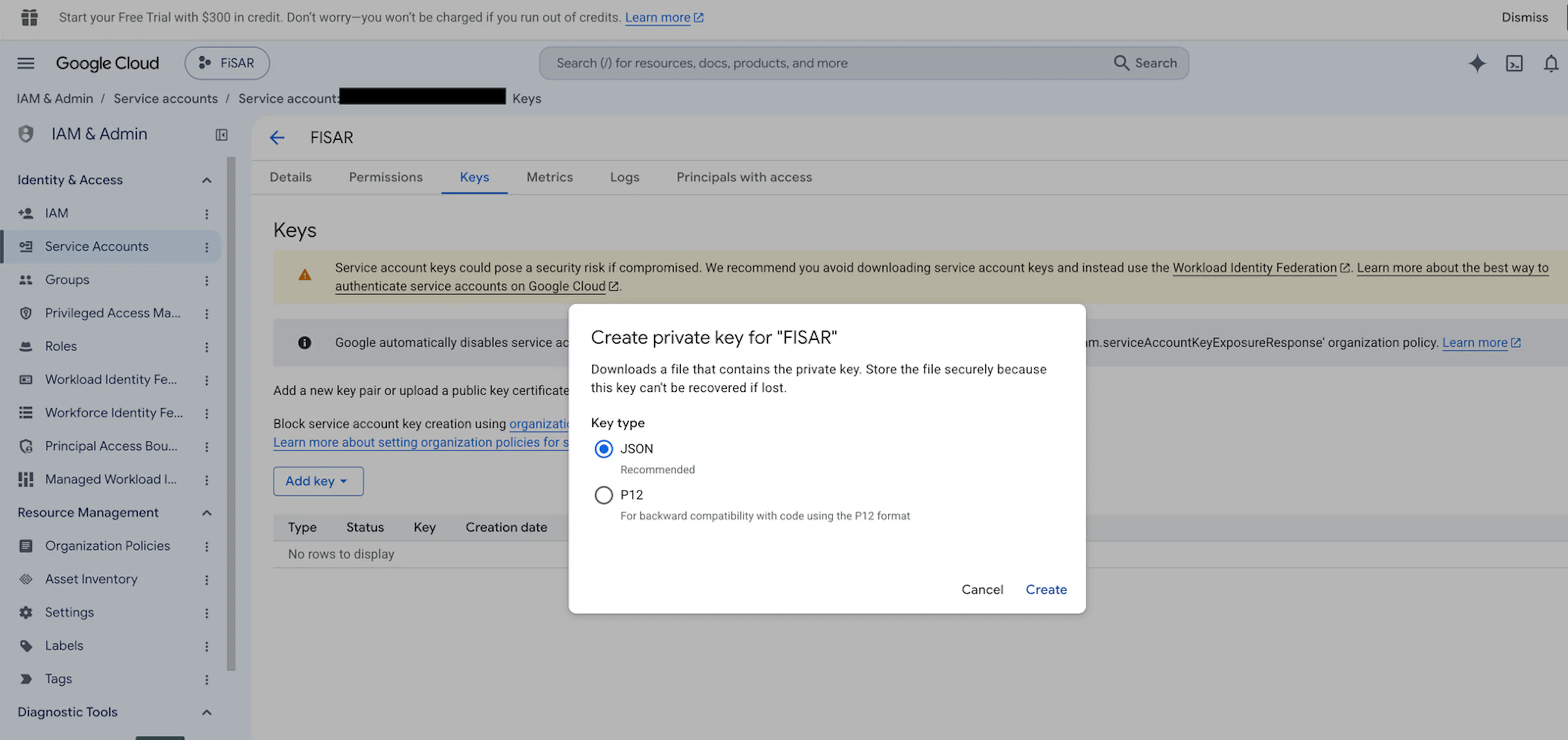
Create a JSON key
Open the Keys tab, click Add key → Create new key, choose JSON and click Create. A file will download to your computer.
Find the two values you need
Open the file in a text editor such as Notepad. You only need two values from it:
client_email— your Service Account Email.private_key— your Private Key. Copy all of it, including the BEGIN and END lines.
Google can't download this key again. Please keep the file somewhere secure, and delete any copies left in your Downloads folder once the values are saved.
Stage 5: Copy the Unique ID
The Unique ID is a number that identifies your service account. You'll need it in Stage 6 to tell Google which account to trust.
Open the service account
Go to IAM & Admin → Service Accounts and click your Fisar service account.
Expand Advanced settings
On the Details tab, expand Advanced settings.
Copy the Client ID
Under Domain-wide Delegation, click the copy icon next to Client ID. This is your Unique ID.
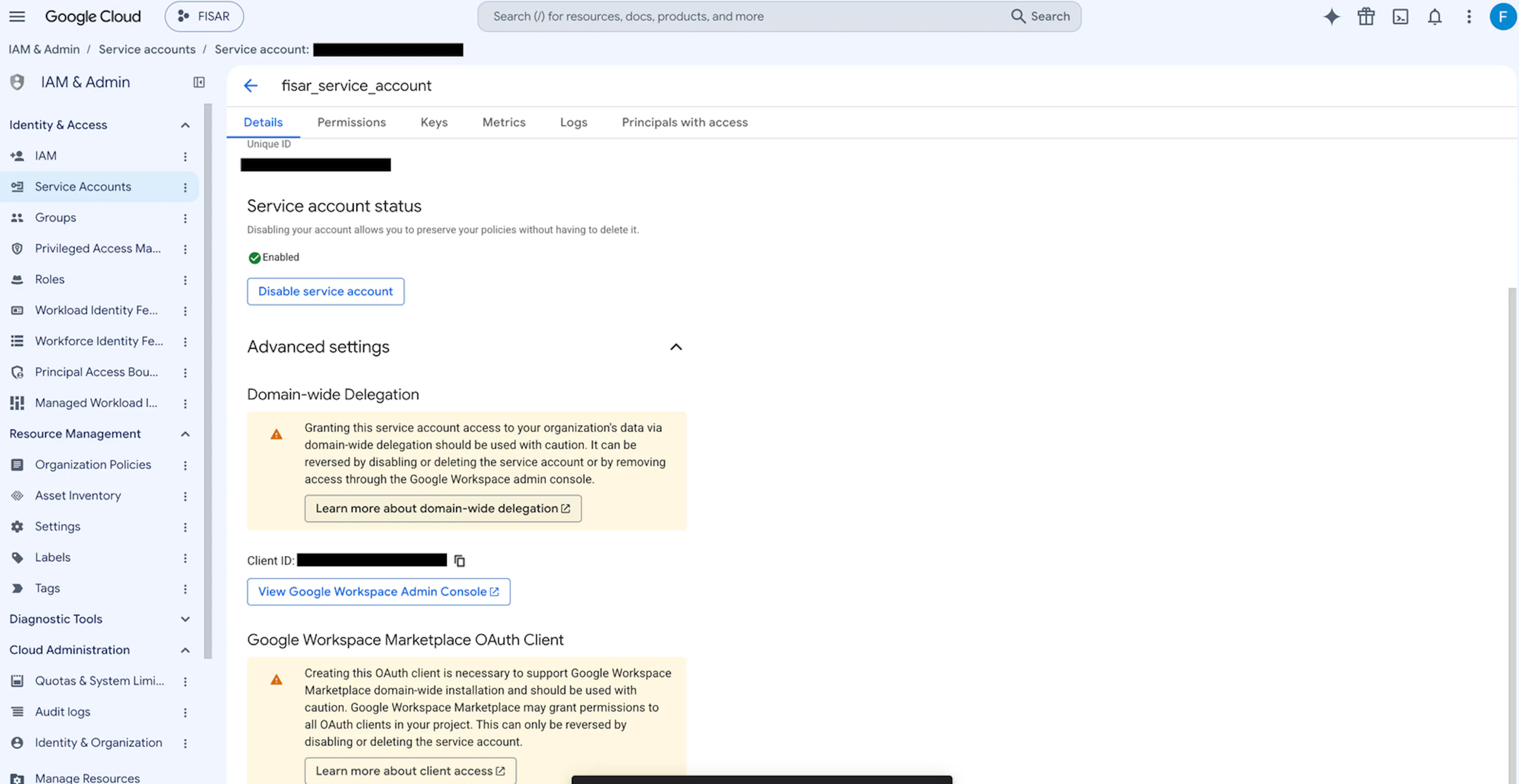
The Unique ID is numbers only. If yours contains letters, you've copied the OAuth Client ID from Stage 2 instead.
Stage 6: Authorise Fisar in the Google Admin console
Domain-wide delegation is how a super admin allows the service account to read data across your organisation. The scopes are the list of exactly what it can read. This final stage must be completed by a super admin on your google account.
Open domain-wide delegation
Go to admin.google.com/ac/owl/domainwidedelegation. You can also find it under Security → Access and data control → API controls → Manage Domain Wide Delegation.
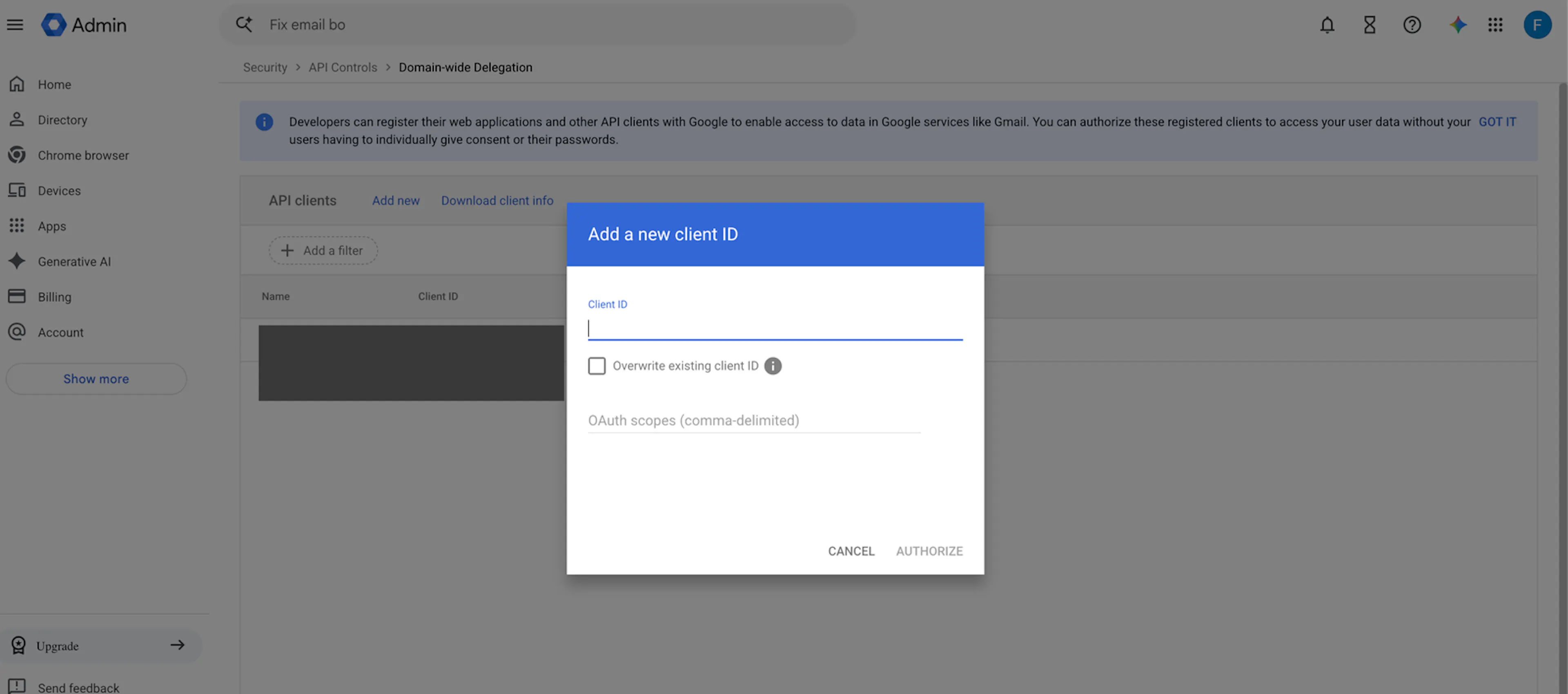
Add a new client
Click Add new and paste your Unique ID from Stage 5 into Client ID.
Paste the scopes
Paste this line into OAuth scopes exactly as it is:
https://www.googleapis.com/auth/admin.directory.user.readonly,https://www.googleapis.com/auth/gmail.readonly,https://www.googleapis.com/auth/drive.readonly,https://www.googleapis.com/auth/calendar.readonly,https://www.googleapis.com/auth/chat.spaces.readonly,https://www.googleapis.com/auth/chat.messages.readonly
Authorise
Click Authorise. Google usually applies the change within a few minutes, but it can occasionally take up to 24 hours.
If something doesn't work
- Lost the Client Secret? Create a new OAuth client (Stage 2) and use the new ID and secret.
- Lost the key file? Add a new JSON key to the same service account (Stage 4).
- Can't create the JSON key? Your organisation may block service account keys. A super admin can allow them under IAM & Admin → Organisation policies by turning off Disable service account key creation for your Fisar project.
- Settings seem to be missing? Check the project name at the top of each Google Cloud page matches the one you chose in Stage 1.
- Still stuck? - Email support@fisar.co.uk and we'll help you through it.
Please don't send the five values by email, chat or a support ticket. If they've been shared that way by mistake, we'll ask you to create a new Client Secret and a new key before connecting.